Configure Model Provider
We recommend using CC Switch to complete the configuration — an open-source provider management tool with a visual interface, no need to manually edit JSON or environment variables.
Set up faster with Ofox Desktop. On an Apple silicon Mac, Desktop can detect this tool, back up its current configuration, and apply an Ofox API key and compatible model. Open Ofox Desktop .
1. Install CC Switch
macOS
brew install --cask cc-switchOr go to Releases to download the .dmg for manual installation.
Windows
Go to Releases to download the .msi installer.
Linux
# Debian / Ubuntu
sudo dpkg -i CC-Switch-*.deb

# Fedora / RHEL
sudo rpm -i CC-Switch-*.rpm

# AppImage
chmod +x CC-Switch-*.AppImage && ./CC-Switch-*.AppImage
Supports macOS 12+, Windows 10+, Ubuntu 22.04+ / Debian 11+ / Fedora 34+
2. Add OfoxAI Provider
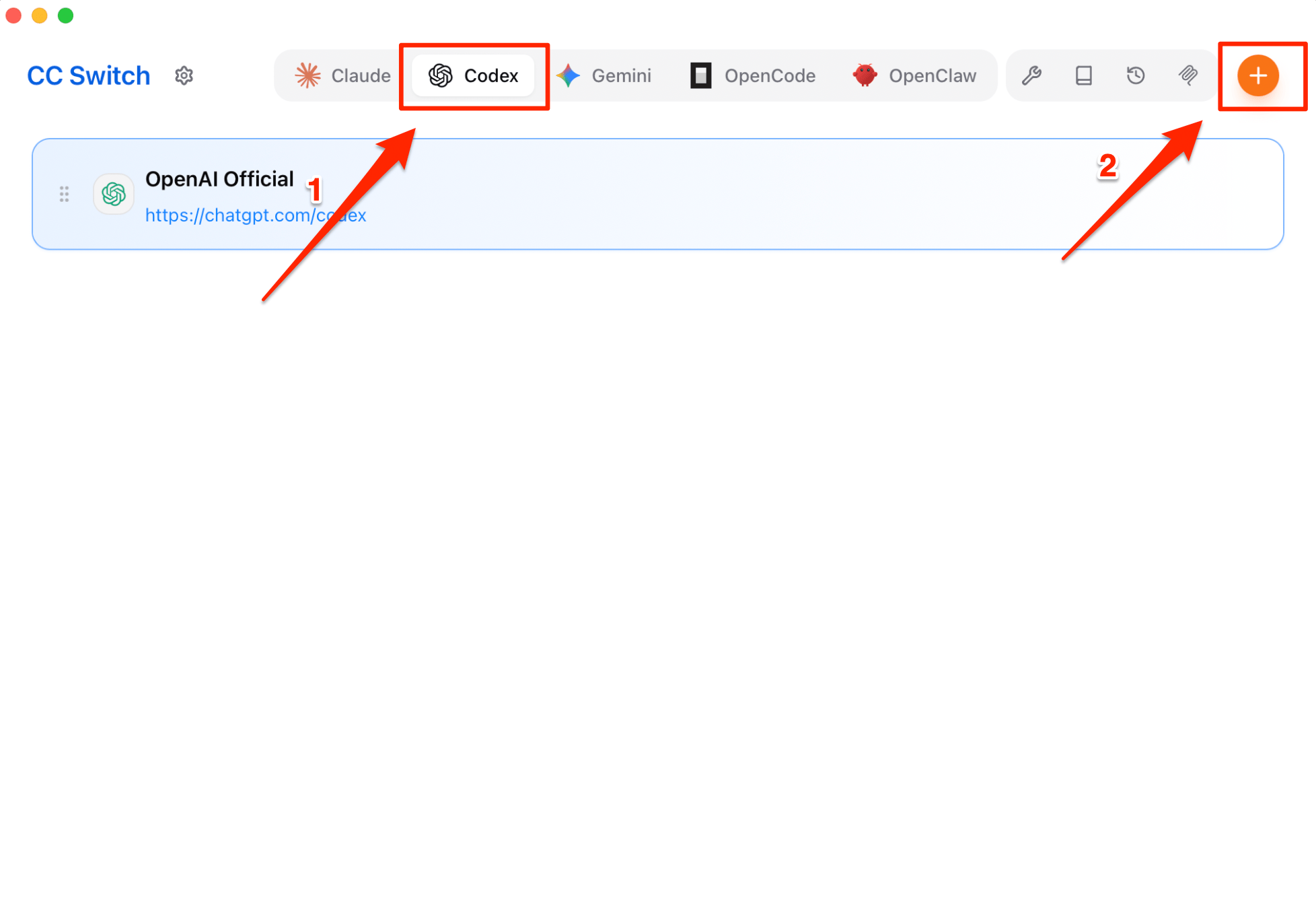
Step 1: Add a New Provider
Switch to the Codex tab at the top, then click the + button in the top-right corner.
Step 2: Fill in the Configuration
Fill in the fields as shown below, then click + Add to complete.
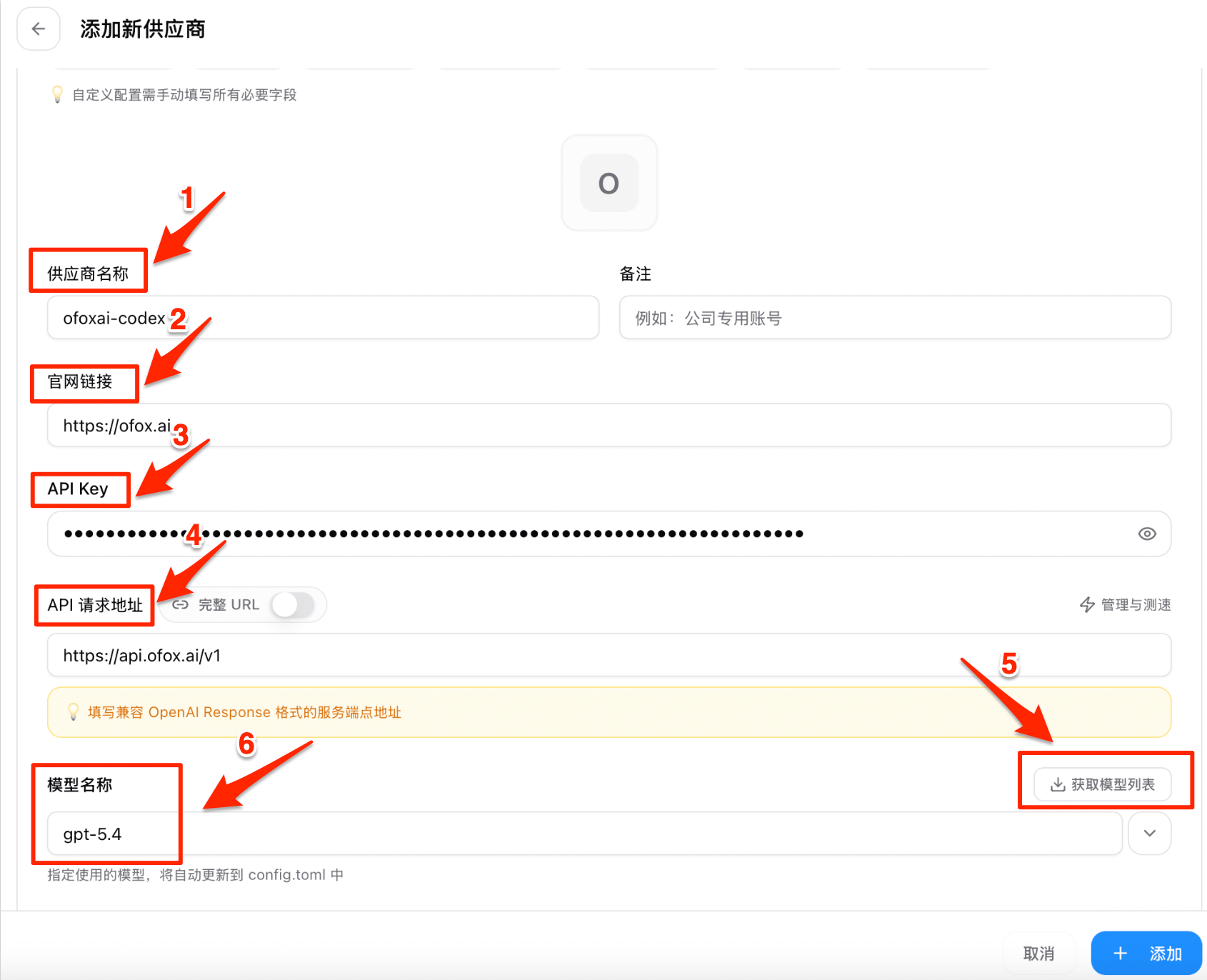
| Field | Value | Description |
|---|---|---|
| ❶ Provider Name | ofoxai-codex | Custom name for easy identification |
| ❷ Website URL | https://ofox.run | Provider website |
| ❸ API Key | Your OfoxAI API Key | Get it at app.ofox.run |
| ❹ Request URL | https://api.ofox.run/v1 | Do not add a trailing slash |
| ❺ API Format | OpenAI Compatible | Select OpenAI compatible format |
| ❻ Write to Global Config | ✅ Checked | Writes to global config, applies to all projects |
CC Switch automatically writes to the config file — no manual file editing required.
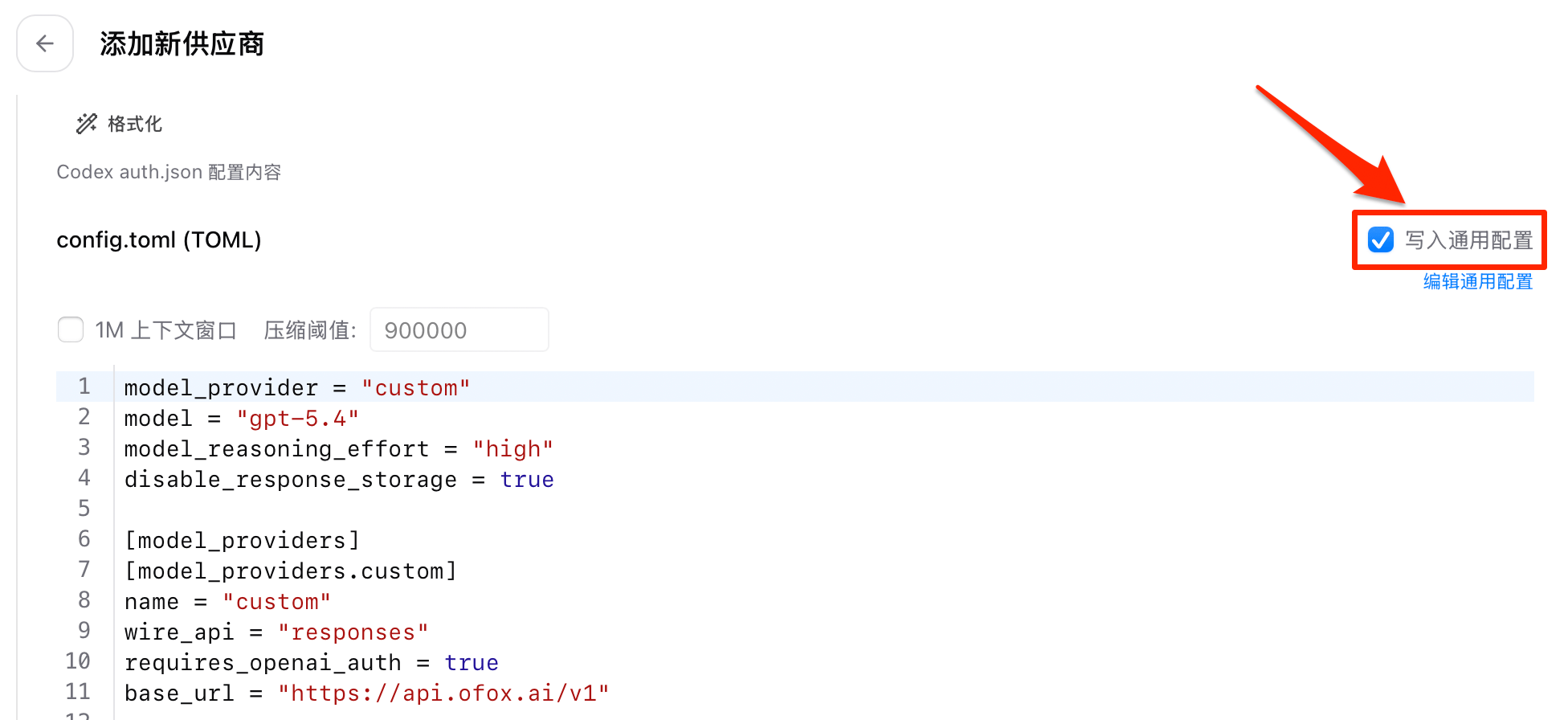
Step 3: Activate the Provider
After adding, go back to the list, select ofoxai-codex, and click Use. Make sure Write to global config is checked — the settings will be automatically written to config.toml.
3. Verify Configuration
codex "hello"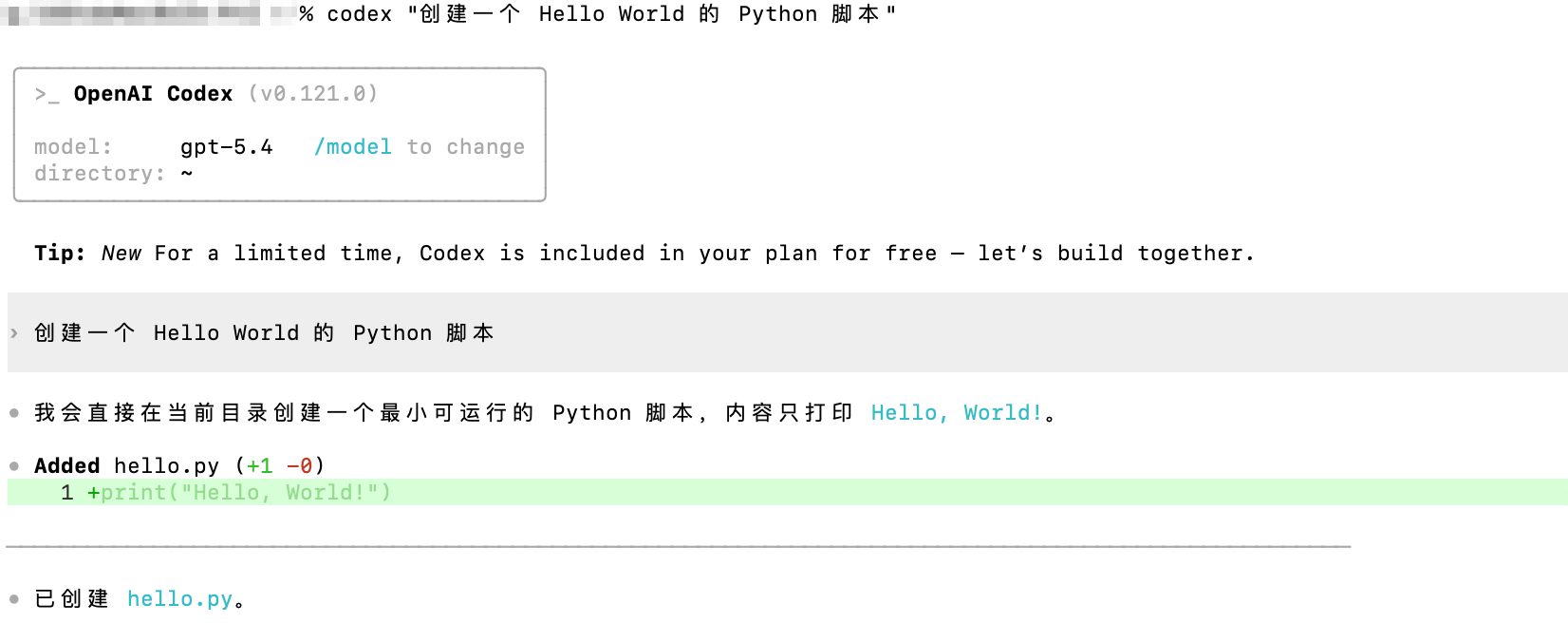
A normal AI response confirms the configuration is working.
4. Specify a Model
codex --model <model-id> "Refactor this function"Codex CLI uses the OpenAI Responses API (wire_api = "responses"). Not all models support this format. When selecting a model, confirm it supports the Responses protocol on the OfoxAI Model Marketplace — otherwise you will get an error.
For recommended models, see the OfoxAI Model Marketplace .
Troubleshooting
Q: “Authentication error” message
Confirm the API Key is correctly filled in and the request URL has no trailing slash.
Q: Connection timeout
Verify the request URL is https://api.ofox.run/v1 with no trailing slash.